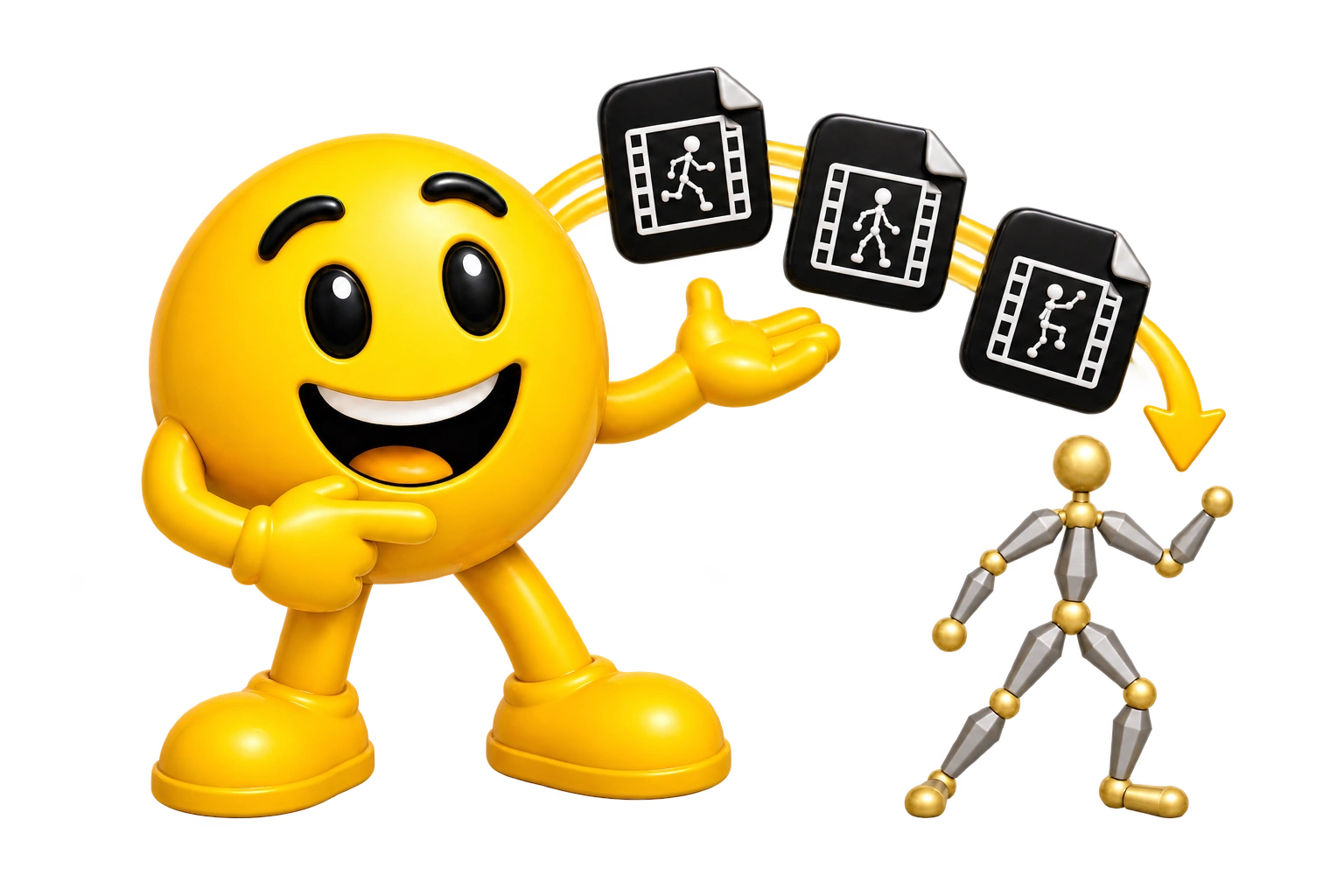
Our BTV Mixamo Upgrade lets you add animations and poses whenever and wherever you want in Blender. We rebuilt the animation transfer workflow to avoid mesh distortion, with no extra work for you. With Same Action, your timeline becomes a canvas: place new motion where you want it, replacing only the chosen body channels within its frame range—without ever manually copying keyframes. The companion Apply Pose to Control Rig lets you add individual poses wherever you need them as well. Compatible with Blender 5.2 LTS.
Create or select your character's Mixamo control rig before applying new motion.
ISOLATED RETARGETING
BTV performs the transfer on a temporary armature-only copy, away from your live rig.
KEEP YOUR SCENE SETUP
The resulting keys go to your selected rig; the temporary copy is removed.
WE UPGRADED ADOBE'S MIXAMO ADD-ON
Our BTV Mixamo Upgrade lets you add animations and poses whenever and wherever you want in Blender. We rebuilt the animation transfer workflow to avoid mesh distortion, with no extra work for you. With Same Action, your timeline becomes a canvas: place new motion where you want it, replacing only the chosen body channels within its frame range—without ever manually copying keyframes. The companion Apply Pose to Control Rig lets you add individual poses wherever you need them as well. Compatible with Blender 5.2 LTS.
Create or select your character's Mixamo control rig before applying new motion.
ISOLATED RETARGETING
BTV performs the transfer on a temporary armature-only copy, away from your live rig.
KEEP YOUR SCENE SETUP
The resulting keys go to your selected rig; the temporary copy is removed.
WE UPGRADED ADOBE'S MIXAMO ADD-ON
Our BTV Mixamo Upgrade lets you add animations and poses whenever and wherever you want in Blender. We rebuilt the animation transfer workflow to avoid mesh distortion, with no extra work for you. With Same Action, your timeline becomes a canvas: place new motion where you want it, replacing only the chosen body channels within its frame range—without ever manually copying keyframes. The companion Apply Pose to Control Rig lets you add individual poses wherever you need them as well. Compatible with Blender 5.2 LTS.
Create or select your character's Mixamo control rig before applying new motion.
ISOLATED RETARGETING
BTV performs the transfer on a temporary armature-only copy, away from your live rig.
KEEP YOUR SCENE SETUP
The resulting keys go to your selected rig; the temporary copy is removed.
WE UPGRADED ADOBE'S MIXAMO ADD-ON
Our BTV Mixamo Upgrade lets you add animations and poses whenever and wherever you want in Blender. We rebuilt the animation transfer workflow to avoid mesh distortion, with no extra work for you. With Same Action, your timeline becomes a canvas: place new motion where you want it, replacing only the chosen body channels within its frame range—without ever manually copying keyframes. The companion Apply Pose to Control Rig lets you add individual poses wherever you need them as well. Compatible with Blender 5.2 LTS.
Create or select your character's Mixamo control rig before applying new motion.
ISOLATED RETARGETING
BTV performs the transfer on a temporary armature-only copy, away from your live rig.
KEEP YOUR SCENE SETUP
The resulting keys go to your selected rig; the temporary copy is removed.
MIX UPPER AND LOWER BODY ANIMATIONS
Apply compatible motion to just the upper body, just the lower body, or both. With Same Action, new motion replaces existing keys only in the chosen body region and destination frame range. The other region keeps its animation—or remains unanimated—and keys outside that range stay intact. Add walking legs beneath a phone conversation or clapping performance, then replace the walk whenever you want. Think of your timeline as a canvas: choose the body region, place the playhead, and paint in your next motion.
UPPER BODY ONLY
Add torso, arm, hand, and head motion while leaving lower-body keys alone.
LOWER BODY ONLY
Add a walk, run, or other compatible lower-body motion while preserving the upper body.
ADD MORE LATER
Apply another region or a single pose later to build the performance over time.
MIX UPPER AND LOWER BODY ANIMATIONS
Apply compatible motion to just the upper body, just the lower body, or both. With Same Action, new motion replaces existing keys only in the chosen body region and destination frame range. The other region keeps its animation—or remains unanimated—and keys outside that range stay intact. Add walking legs beneath a phone conversation or clapping performance, then replace the walk whenever you want. Think of your timeline as a canvas: choose the body region, place the playhead, and paint in your next motion.
UPPER BODY ONLY
Add torso, arm, hand, and head motion while leaving lower-body keys alone.
LOWER BODY ONLY
Add a walk, run, or other compatible lower-body motion while preserving the upper body.
ADD MORE LATER
Apply another region or a single pose later to build the performance over time.
MIX UPPER AND LOWER BODY ANIMATIONS
Apply compatible motion to just the upper body, just the lower body, or both. With Same Action, new motion replaces existing keys only in the chosen body region and destination frame range. The other region keeps its animation—or remains unanimated—and keys outside that range stay intact. Add walking legs beneath a phone conversation or clapping performance, then replace the walk whenever you want. Think of your timeline as a canvas: choose the body region, place the playhead, and paint in your next motion.
UPPER BODY ONLY
Add torso, arm, hand, and head motion while leaving lower-body keys alone.
LOWER BODY ONLY
Add a walk, run, or other compatible lower-body motion while preserving the upper body.
ADD MORE LATER
Apply another region or a single pose later to build the performance over time.
MIX UPPER AND LOWER BODY ANIMATIONS
Apply compatible motion to just the upper body, just the lower body, or both. With Same Action, new motion replaces existing keys only in the chosen body region and destination frame range. The other region keeps its animation—or remains unanimated—and keys outside that range stay intact. Add walking legs beneath a phone conversation or clapping performance, then replace the walk whenever you want. Think of your timeline as a canvas: choose the body region, place the playhead, and paint in your next motion.
UPPER BODY ONLY
Add torso, arm, hand, and head motion while leaving lower-body keys alone.
LOWER BODY ONLY
Add a walk, run, or other compatible lower-body motion while preserving the upper body.
ADD MORE LATER
Apply another region or a single pose later to build the performance over time.
PUT MOTION WHERE YOU WANT IT
Same Action works like a motion paintbrush: place the playhead or enter an exact frame, then apply your animation. New motion replaces overlapping keys only on the enabled body channels and within the transferred range, preserving keys elsewhere. Change your mind? Return to that frame and apply another motion in one click. You can also add animations to new Actions if that suits you. Our Apply Pose to Control Rig operator works within the same Action system, so you can place individual poses just as easily as animations.
SAME ACTION OR NEW
Keep building the current Action. On enabled body channels, the transferred range replaces overlapping keys where it lands—like painting motion onto the timeline. Or create a separate transferred Action.
PLAYHEAD OR FRAME
Start transferred motion at the playhead or at a specific destination frame.
APPLY A SINGLE POSE
Place one source Pose Frame at your chosen frame, replacing matching enabled-control keys there only.
PUT MOTION WHERE YOU WANT IT
Same Action works like a motion paintbrush: place the playhead or enter an exact frame, then apply your animation. New motion replaces overlapping keys only on the enabled body channels and within the transferred range, preserving keys elsewhere. Change your mind? Return to that frame and apply another motion in one click. You can also add animations to new Actions if that suits you. Our Apply Pose to Control Rig operator works within the same Action system, so you can place individual poses just as easily as animations.
SAME ACTION OR NEW
Keep building the current Action. On enabled body channels, the transferred range replaces overlapping keys where it lands—like painting motion onto the timeline. Or create a separate transferred Action.
PLAYHEAD OR FRAME
Start transferred motion at the playhead or at a specific destination frame.
APPLY A SINGLE POSE
Place one source Pose Frame at your chosen frame, replacing matching enabled-control keys there only.
PUT MOTION WHERE YOU WANT IT
Same Action works like a motion paintbrush: place the playhead or enter an exact frame, then apply your animation. New motion replaces overlapping keys only on the enabled body channels and within the transferred range, preserving keys elsewhere. Change your mind? Return to that frame and apply another motion in one click. You can also add animations to new Actions if that suits you. Our Apply Pose to Control Rig operator works within the same Action system, so you can place individual poses just as easily as animations.
SAME ACTION OR NEW
Keep building the current Action. On enabled body channels, the transferred range replaces overlapping keys where it lands—like painting motion onto the timeline. Or create a separate transferred Action.
PLAYHEAD OR FRAME
Start transferred motion at the playhead or at a specific destination frame.
APPLY A SINGLE POSE
Place one source Pose Frame at your chosen frame, replacing matching enabled-control keys there only.
PUT MOTION WHERE YOU WANT IT
Same Action works like a motion paintbrush: place the playhead or enter an exact frame, then apply your animation. New motion replaces overlapping keys only on the enabled body channels and within the transferred range, preserving keys elsewhere. Change your mind? Return to that frame and apply another motion in one click. You can also add animations to new Actions if that suits you. Our Apply Pose to Control Rig operator works within the same Action system, so you can place individual poses just as easily as animations.
SAME ACTION OR NEW
Keep building the current Action. On enabled body channels, the transferred range replaces overlapping keys where it lands—like painting motion onto the timeline. Or create a separate transferred Action.
PLAYHEAD OR FRAME
Start transferred motion at the playhead or at a specific destination frame.
APPLY A SINGLE POSE
Place one source Pose Frame at your chosen frame, replacing matching enabled-control keys there only.
EXTEND WALK CYCLES AUTOMATICALLY
Turn one complete, naturally loopable walk cycle into a longer walk. Set the total Walk Cycles and click Extend Walk Cycle. Our BTV Mixamo Upgrade automatically uses the appropriate right-foot Anchor Bone for your FK or IK animation, repeats the motion, and carries its travel forward. Choosing a different Anchor Bone is optional, giving you control when another bone better suits the result you’re after. Start with a cycle whose end flows naturally into its beginning for a smooth repeat. You can also continue a walk directly with Apply Animation to Control Rig: with Same Action enabled, if your walk runs from frame 1 through frame 24, place the playhead at frame 25 and apply that same walk again. The transfer automatically carries the character forward from its current position instead of sending it back to the start.
CHOOSE AN ANCHOR BONE
Use the automatic right-foot default, or choose another repeating bone to suit your motion.
SET TOTAL WALK CYCLES
Choose the total number of cycles; the original counts as cycle one.
CLICK EXTEND WALK CYCLE
Repeat the loop and carry its travel forward with one button.
EXTEND WALK CYCLES AUTOMATICALLY
Turn one complete, naturally loopable walk cycle into a longer walk. Set the total Walk Cycles and click Extend Walk Cycle. Our BTV Mixamo Upgrade automatically uses the appropriate right-foot Anchor Bone for your FK or IK animation, repeats the motion, and carries its travel forward. Choosing a different Anchor Bone is optional, giving you control when another bone better suits the result you’re after. Start with a cycle whose end flows naturally into its beginning for a smooth repeat. You can also continue a walk directly with Apply Animation to Control Rig: with Same Action enabled, if your walk runs from frame 1 through frame 24, place the playhead at frame 25 and apply that same walk again. The transfer automatically carries the character forward from its current position instead of sending it back to the start.
CHOOSE AN ANCHOR BONE
Use the automatic right-foot default, or choose another repeating bone to suit your motion.
SET TOTAL WALK CYCLES
Choose the total number of cycles; the original counts as cycle one.
CLICK EXTEND WALK CYCLE
Repeat the loop and carry its travel forward with one button.
EXTEND WALK CYCLES AUTOMATICALLY
Turn one complete, naturally loopable walk cycle into a longer walk. Set the total Walk Cycles and click Extend Walk Cycle. Our BTV Mixamo Upgrade automatically uses the appropriate right-foot Anchor Bone for your FK or IK animation, repeats the motion, and carries its travel forward. Choosing a different Anchor Bone is optional, giving you control when another bone better suits the result you’re after. Start with a cycle whose end flows naturally into its beginning for a smooth repeat. You can also continue a walk directly with Apply Animation to Control Rig: with Same Action enabled, if your walk runs from frame 1 through frame 24, place the playhead at frame 25 and apply that same walk again. The transfer automatically carries the character forward from its current position instead of sending it back to the start.
CHOOSE AN ANCHOR BONE
Use the automatic right-foot default, or choose another repeating bone to suit your motion.
SET TOTAL WALK CYCLES
Choose the total number of cycles; the original counts as cycle one.
CLICK EXTEND WALK CYCLE
Repeat the loop and carry its travel forward with one button.
EXTEND WALK CYCLES AUTOMATICALLY
Turn one complete, naturally loopable walk cycle into a longer walk. Set the total Walk Cycles and click Extend Walk Cycle. Our BTV Mixamo Upgrade automatically uses the appropriate right-foot Anchor Bone for your FK or IK animation, repeats the motion, and carries its travel forward. Choosing a different Anchor Bone is optional, giving you control when another bone better suits the result you’re after. Start with a cycle whose end flows naturally into its beginning for a smooth repeat. You can also continue a walk directly with Apply Animation to Control Rig: with Same Action enabled, if your walk runs from frame 1 through frame 24, place the playhead at frame 25 and apply that same walk again. The transfer automatically carries the character forward from its current position instead of sending it back to the start.
CHOOSE AN ANCHOR BONE
Use the automatic right-foot default, or choose another repeating bone to suit your motion.
SET TOTAL WALK CYCLES
Choose the total number of cycles; the original counts as cycle one.
CLICK EXTEND WALK CYCLE
Repeat the loop and carry its travel forward with one button.
APPEND A CHARACTER AND ANIMATE
Need another pre-rigged character in the scene? Append | Animate loads a character from a saved .blend Collection and applies your selected Source Skeleton animation to that newly appended rig. It creates a new character in the current scene; use the Apply buttons instead when you want to transfer motion to the existing control rig you already selected.
SAVED RIGGED CHARACTER
Prepare the character you want to bring in from a .blend file.
FILE PATH & COLLECTION
Point to that saved project and its character Collection.
APPEND | ANIMATE
Bring in a new character and apply the selected source animation.
APPEND A CHARACTER AND ANIMATE
Need another pre-rigged character in the scene? Append | Animate loads a character from a saved .blend Collection and applies your selected Source Skeleton animation to that newly appended rig. It creates a new character in the current scene; use the Apply buttons instead when you want to transfer motion to the existing control rig you already selected.
SAVED RIGGED CHARACTER
Prepare the character you want to bring in from a .blend file.
FILE PATH & COLLECTION
Point to that saved project and its character Collection.
APPEND | ANIMATE
Bring in a new character and apply the selected source animation.
APPEND A CHARACTER AND ANIMATE
Need another pre-rigged character in the scene? Append | Animate loads a character from a saved .blend Collection and applies your selected Source Skeleton animation to that newly appended rig. It creates a new character in the current scene; use the Apply buttons instead when you want to transfer motion to the existing control rig you already selected.
SAVED RIGGED CHARACTER
Prepare the character you want to bring in from a .blend file.
FILE PATH & COLLECTION
Point to that saved project and its character Collection.
APPEND | ANIMATE
Bring in a new character and apply the selected source animation.
APPEND A CHARACTER AND ANIMATE
Need another pre-rigged character in the scene? Append | Animate loads a character from a saved .blend Collection and applies your selected Source Skeleton animation to that newly appended rig. It creates a new character in the current scene; use the Apply buttons instead when you want to transfer motion to the existing control rig you already selected.
SAVED RIGGED CHARACTER
Prepare the character you want to bring in from a .blend file.
FILE PATH & COLLECTION
Point to that saved project and its character Collection.
APPEND | ANIMATE
Bring in a new character and apply the selected source animation.
MIRROR HAND POSES IN ONE CLICK
After posing one hand and its fingers, use the Mirror subpanel to copy that hand pose to the other side. The matching hand and finger controls in the rig's current IK or FK mode—and related arm controls when present—are included. This is a hand-pose helper for your Mixamo control rig—not a claim that every full-body animation is mirrored.
POSE ONE HAND
Fine-tune the fingers and hand on the side you like.
LEFT HAND → RIGHT
Mirror the left-hand pose to the corresponding right-hand controls.
RIGHT HAND → LEFT
Or copy the finished right-hand pose back to the left.
MIRROR HAND POSES IN ONE CLICK
After posing one hand and its fingers, use the Mirror subpanel to copy that hand pose to the other side. The matching hand and finger controls in the rig's current IK or FK mode—and related arm controls when present—are included. This is a hand-pose helper for your Mixamo control rig—not a claim that every full-body animation is mirrored.
POSE ONE HAND
Fine-tune the fingers and hand on the side you like.
LEFT HAND → RIGHT
Mirror the left-hand pose to the corresponding right-hand controls.
RIGHT HAND → LEFT
Or copy the finished right-hand pose back to the left.
MIRROR HAND POSES IN ONE CLICK
After posing one hand and its fingers, use the Mirror subpanel to copy that hand pose to the other side. The matching hand and finger controls in the rig's current IK or FK mode—and related arm controls when present—are included. This is a hand-pose helper for your Mixamo control rig—not a claim that every full-body animation is mirrored.
POSE ONE HAND
Fine-tune the fingers and hand on the side you like.
LEFT HAND → RIGHT
Mirror the left-hand pose to the corresponding right-hand controls.
RIGHT HAND → LEFT
Or copy the finished right-hand pose back to the left.
MIRROR HAND POSES IN ONE CLICK
After posing one hand and its fingers, use the Mirror subpanel to copy that hand pose to the other side. The matching hand and finger controls in the rig's current IK or FK mode—and related arm controls when present—are included. This is a hand-pose helper for your Mixamo control rig—not a claim that every full-body animation is mirrored.
POSE ONE HAND
Fine-tune the fingers and hand on the side you like.
LEFT HAND → RIGHT
Mirror the left-hand pose to the corresponding right-hand controls.
RIGHT HAND → LEFT
Or copy the finished right-hand pose back to the left.
IMPORT MULTIPLE FBX ANIMATIONS
Batch Import FBX brings multiple downloaded animation files into Blender in one operation, so you can inspect and choose your source motion. When you import a single suitable animated armature with Add to Source Skeleton enabled, BTV can put it in the Source Skeleton field for the next Apply operation. A multi-file batch does not silently choose one source for you.
SELECT MULTIPLE FBX FILES
Bring a group of downloaded Mixamo animation files into one scene.
INSPECT YOUR OPTIONS
See the imported motions and decide which armature should supply the animation.
SET THE SOURCE
For a single import, Add to Source Skeleton can fill the source field automatically.
IMPORT MULTIPLE FBX ANIMATIONS
Batch Import FBX brings multiple downloaded animation files into Blender in one operation, so you can inspect and choose your source motion. When you import a single suitable animated armature with Add to Source Skeleton enabled, BTV can put it in the Source Skeleton field for the next Apply operation. A multi-file batch does not silently choose one source for you.
SELECT MULTIPLE FBX FILES
Bring a group of downloaded Mixamo animation files into one scene.
INSPECT YOUR OPTIONS
See the imported motions and decide which armature should supply the animation.
SET THE SOURCE
For a single import, Add to Source Skeleton can fill the source field automatically.
IMPORT MULTIPLE FBX ANIMATIONS
Batch Import FBX brings multiple downloaded animation files into Blender in one operation, so you can inspect and choose your source motion. When you import a single suitable animated armature with Add to Source Skeleton enabled, BTV can put it in the Source Skeleton field for the next Apply operation. A multi-file batch does not silently choose one source for you.
SELECT MULTIPLE FBX FILES
Bring a group of downloaded Mixamo animation files into one scene.
INSPECT YOUR OPTIONS
See the imported motions and decide which armature should supply the animation.
SET THE SOURCE
For a single import, Add to Source Skeleton can fill the source field automatically.
IMPORT MULTIPLE FBX ANIMATIONS
Batch Import FBX brings multiple downloaded animation files into Blender in one operation, so you can inspect and choose your source motion. When you import a single suitable animated armature with Add to Source Skeleton enabled, BTV can put it in the Source Skeleton field for the next Apply operation. A multi-file batch does not silently choose one source for you.
SELECT MULTIPLE FBX FILES
Bring a group of downloaded Mixamo animation files into one scene.
INSPECT YOUR OPTIONS
See the imported motions and decide which armature should supply the animation.
SET THE SOURCE
For a single import, Add to Source Skeleton can fill the source field automatically.
GET MORE MIXAMO MOTION
Choose a character on Mixamo or upload your own, then use the Mixamo Downloader to start downloading over 2,100 motions adapted to that character in one click. After downloading, our Batch Import FBX operator brings multiple animation files into Blender at once. Choose the Source Skeleton containing the motion you want, select your character’s control rig, and click Apply Animation to Control Rig to place it where you want it.
BROWSE MIXAMO
Choose a Mixamo character or upload your own, ready for animations adapted to its proportions.
OPEN THE DOWNLOADER
Then start downloading over 2,100 Mixamo motions for your selected character in one click.
USE THEM IN BLENDER
Batch-import your downloaded FBX files, choose the Source Skeleton you want, and use Apply Animation to Control Rig to transfer its motion.
GET MORE MIXAMO MOTION
Choose a character on Mixamo or upload your own, then use the Mixamo Downloader to start downloading over 2,100 motions adapted to that character in one click. After downloading, our Batch Import FBX operator brings multiple animation files into Blender at once. Choose the Source Skeleton containing the motion you want, select your character’s control rig, and click Apply Animation to Control Rig to place it where you want it.
BROWSE MIXAMO
Choose a Mixamo character or upload your own, ready for animations adapted to its proportions.
OPEN THE DOWNLOADER
Then start downloading over 2,100 Mixamo motions for your selected character in one click.
USE THEM IN BLENDER
Batch-import your downloaded FBX files, choose the Source Skeleton you want, and use Apply Animation to Control Rig to transfer its motion.
GET MORE MIXAMO MOTION
Choose a character on Mixamo or upload your own, then use the Mixamo Downloader to start downloading over 2,100 motions adapted to that character in one click. After downloading, our Batch Import FBX operator brings multiple animation files into Blender at once. Choose the Source Skeleton containing the motion you want, select your character’s control rig, and click Apply Animation to Control Rig to place it where you want it.
BROWSE MIXAMO
Choose a Mixamo character or upload your own, ready for animations adapted to its proportions.
OPEN THE DOWNLOADER
Then start downloading over 2,100 Mixamo motions for your selected character in one click.
USE THEM IN BLENDER
Batch-import your downloaded FBX files, choose the Source Skeleton you want, and use Apply Animation to Control Rig to transfer its motion.
GET MORE MIXAMO MOTION
Choose a character on Mixamo or upload your own, then use the Mixamo Downloader to start downloading over 2,100 motions adapted to that character in one click. After downloading, our Batch Import FBX operator brings multiple animation files into Blender at once. Choose the Source Skeleton containing the motion you want, select your character’s control rig, and click Apply Animation to Control Rig to place it where you want it.
BROWSE MIXAMO
Choose a Mixamo character or upload your own, ready for animations adapted to its proportions.
OPEN THE DOWNLOADER
Then start downloading over 2,100 Mixamo motions for your selected character in one click.
USE THEM IN BLENDER
Batch-import your downloaded FBX files, choose the Source Skeleton you want, and use Apply Animation to Control Rig to transfer its motion.
BUILT FOR PRODUCTION
We built this add-on because we got tired of being told no when trying to add Mixamo animations to our characters. We always wanted to add an animation where we wanted it, when we wanted it, but the original Mixamo add-on always put it in a new Action. Then we had to go find those keyframes, select some bone channels, scroll down, select more, and copy everything into the Action we actually wanted. We got rid of that. With our awesome Same Action implementation, put your playhead where you want the motion and add it in one click. Our animation transfer operators put it right there, replacing only the chosen bone channels within the motion’s frame range. It also works seamlessly with our Upper Body and Lower Body settings and automatic walk-cycle continuation—so animations and poses go where you want them, when you want them, at exactly the frames you choose, every time. Taking that hassle out of using Mixamo is what this upgrade is all about—and you’ll see that attention to the workflow everywhere you look.
BAKE FOR EDITING
Bring pushed-down NLA motion into an editable Action.
CONVERT RIG TO FK
Convert a Mixamo rig with IK arms, IK legs, or both into a fully FK rig with one guided command, preserving the evaluated pose or baking the animation.
REAL HELP
Report an issue and work with us to diagnose your scene.
BUILT FOR PRODUCTION
We built this add-on because we got tired of being told no when trying to add Mixamo animations to our characters. We always wanted to add an animation where we wanted it, when we wanted it, but the original Mixamo add-on always put it in a new Action. Then we had to go find those keyframes, select some bone channels, scroll down, select more, and copy everything into the Action we actually wanted. We got rid of that. With our awesome Same Action implementation, put your playhead where you want the motion and add it in one click. Our animation transfer operators put it right there, replacing only the chosen bone channels within the motion’s frame range. It also works seamlessly with our Upper Body and Lower Body settings and automatic walk-cycle continuation—so animations and poses go where you want them, when you want them, at exactly the frames you choose, every time. Taking that hassle out of using Mixamo is what this upgrade is all about—and you’ll see that attention to the workflow everywhere you look.
BAKE FOR EDITING
Bring pushed-down NLA motion into an editable Action.
CONVERT RIG TO FK
Convert a Mixamo rig with IK arms, IK legs, or both into a fully FK rig with one guided command, preserving the evaluated pose or baking the animation.
REAL HELP
Report an issue and work with us to diagnose your scene.
BUILT FOR PRODUCTION
We built this add-on because we got tired of being told no when trying to add Mixamo animations to our characters. We always wanted to add an animation where we wanted it, when we wanted it, but the original Mixamo add-on always put it in a new Action. Then we had to go find those keyframes, select some bone channels, scroll down, select more, and copy everything into the Action we actually wanted. We got rid of that. With our awesome Same Action implementation, put your playhead where you want the motion and add it in one click. Our animation transfer operators put it right there, replacing only the chosen bone channels within the motion’s frame range. It also works seamlessly with our Upper Body and Lower Body settings and automatic walk-cycle continuation—so animations and poses go where you want them, when you want them, at exactly the frames you choose, every time. Taking that hassle out of using Mixamo is what this upgrade is all about—and you’ll see that attention to the workflow everywhere you look.
BAKE FOR EDITING
Bring pushed-down NLA motion into an editable Action.
CONVERT RIG TO FK
Convert a Mixamo rig with IK arms, IK legs, or both into a fully FK rig with one guided command, preserving the evaluated pose or baking the animation.
REAL HELP
Report an issue and work with us to diagnose your scene.
BUILT FOR PRODUCTION
We built this add-on because we got tired of being told no when trying to add Mixamo animations to our characters. We always wanted to add an animation where we wanted it, when we wanted it, but the original Mixamo add-on always put it in a new Action. Then we had to go find those keyframes, select some bone channels, scroll down, select more, and copy everything into the Action we actually wanted. We got rid of that. With our awesome Same Action implementation, put your playhead where you want the motion and add it in one click. Our animation transfer operators put it right there, replacing only the chosen bone channels within the motion’s frame range. It also works seamlessly with our Upper Body and Lower Body settings and automatic walk-cycle continuation—so animations and poses go where you want them, when you want them, at exactly the frames you choose, every time. Taking that hassle out of using Mixamo is what this upgrade is all about—and you’ll see that attention to the workflow everywhere you look.
BAKE FOR EDITING
Bring pushed-down NLA motion into an editable Action.
CONVERT RIG TO FK
Convert a Mixamo rig with IK arms, IK legs, or both into a fully FK rig with one guided command, preserving the evaluated pose or baking the animation.
REAL HELP
Report an issue and work with us to diagnose your scene.
WANT THE WHOLE STUDIO?
The upgraded Mixamo add-on is also included in Blender TV Studio, our broader production toolkit with more than 1,500 added buttons across Blender. We use it to streamline the daily work of making our TV show. Already bought the standalone Mixamo add-on directly from us? If you later purchase Blender TV Studio, contact support with both orders. After we verify them, we will refund the amount you actually paid for the standalone add-on, so you do not pay twice.
The upgraded Mixamo add-on comes with Blender TV Studio.
1,500+ ADDED BUTTONS
Speed up animation and many other parts of Blender production.
NO DOUBLE PAYMENT
Bought both directly from us? Contact support for a refund of the standalone Mixamo amount paid.
WANT THE WHOLE STUDIO?
The upgraded Mixamo add-on is also included in Blender TV Studio, our broader production toolkit with more than 1,500 added buttons across Blender. We use it to streamline the daily work of making our TV show. Already bought the standalone Mixamo add-on directly from us? If you later purchase Blender TV Studio, contact support with both orders. After we verify them, we will refund the amount you actually paid for the standalone add-on, so you do not pay twice.
The upgraded Mixamo add-on comes with Blender TV Studio.
1,500+ ADDED BUTTONS
Speed up animation and many other parts of Blender production.
NO DOUBLE PAYMENT
Bought both directly from us? Contact support for a refund of the standalone Mixamo amount paid.
WANT THE WHOLE STUDIO?
The upgraded Mixamo add-on is also included in Blender TV Studio, our broader production toolkit with more than 1,500 added buttons across Blender. We use it to streamline the daily work of making our TV show. Already bought the standalone Mixamo add-on directly from us? If you later purchase Blender TV Studio, contact support with both orders. After we verify them, we will refund the amount you actually paid for the standalone add-on, so you do not pay twice.
The upgraded Mixamo add-on comes with Blender TV Studio.
1,500+ ADDED BUTTONS
Speed up animation and many other parts of Blender production.
NO DOUBLE PAYMENT
Bought both directly from us? Contact support for a refund of the standalone Mixamo amount paid.
WANT THE WHOLE STUDIO?
The upgraded Mixamo add-on is also included in Blender TV Studio, our broader production toolkit with more than 1,500 added buttons across Blender. We use it to streamline the daily work of making our TV show. Already bought the standalone Mixamo add-on directly from us? If you later purchase Blender TV Studio, contact support with both orders. After we verify them, we will refund the amount you actually paid for the standalone add-on, so you do not pay twice.